
Logitech MX Creative Console – Hands On (Literally) With a Nearly-Perfect Editing Tool

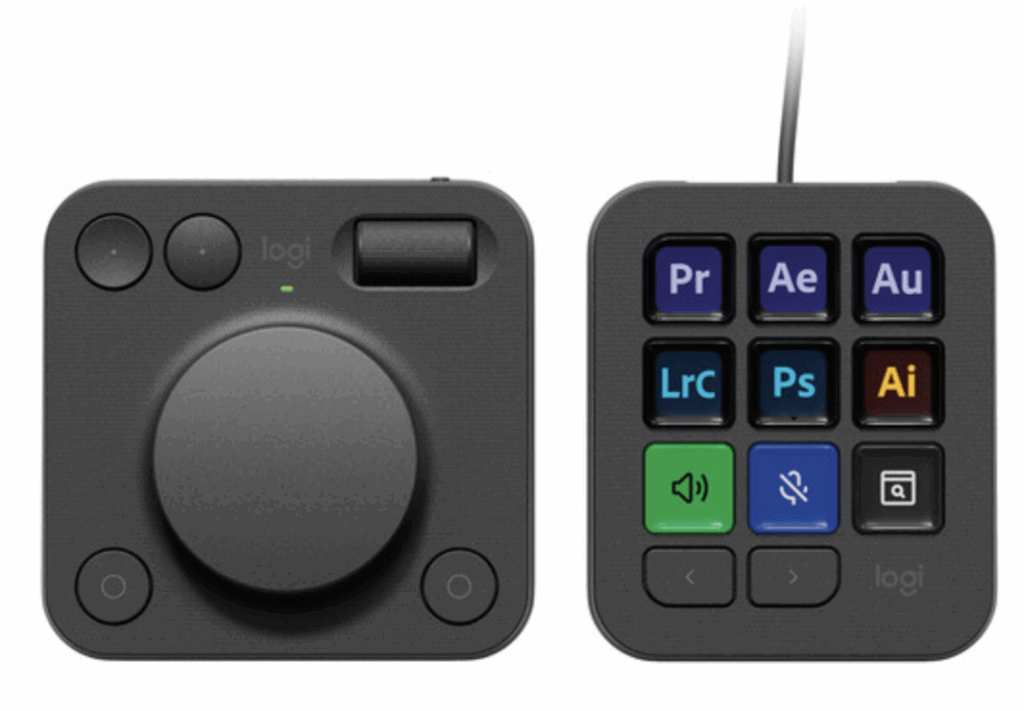
Table of Contents
-
 Quick Takes
 -
Logitech MX Creative Console – Creator Decks to the Rescue
-
Logitech MX Creative Console Design and Layout
-
Logi Options+ Software and Control — A Learning Curve but Great Customization
-
Logitech MX Creative Console in Use
-
Logitech MX Creative Console Purchase Recommendations
-
Other Tools to Consider
 Quick Takes
Quick Takes
The Logitech MX Creative Console offers a budget-friendly entry into the creator control deck market at under $200, providing nine programmable LCD buttons and a contextual dial that adapts to your workflow. While it lacks the extensive controls of premium alternatives like the $550 Loupedeck Creative Tool, its split-unit design and solid software integration make it a practical choice for creators who want to streamline their editing without breaking the bank.

The Logitech MX Creative Console is a compact two-module control surface designed for photo, video, and audio workflows. It combines a nine-button LCD keypad with a weighted dial module, both configurable through Logi Options+. The system integrates with major creative apps, supports custom profiles, and allows per-app button assignments and dial behaviors. Its small footprint makes it suitable for tight desks or portable creator setups.
- Full-color LCD buttons allow clear icon labeling
- Dial adapts based on the selected tool or application
- Split-module layout allows flexible positioning on the desk
- Strong software integration with Logi Options+ for major apps
- Only nine programmable buttons means toggling through pages of buttons
- Display Keys unit requires a USB-C cable—no wireless option
- Modules do not physically lock together and can shift on the desk
Logitech MX Creative Console – Creator Decks to the Rescue
A keyboard and mouse are dreadful photo and video editing tools, yet they have been the primary interface between humans and computers for decades. For newcomers to editing, there’s a huge learning curve to memorizing keyboard shortcuts, and proficient users still have to reach for the keyboard for almost every task.
As the livestreaming market grew, companies like Elgato and Loupedeck released control decks with programmable keys. These decks simulate the physical control surfaces found in broadcast studios, making tasks like changing camera angles, calling up graphics, or adjusting microphone inputs easy.
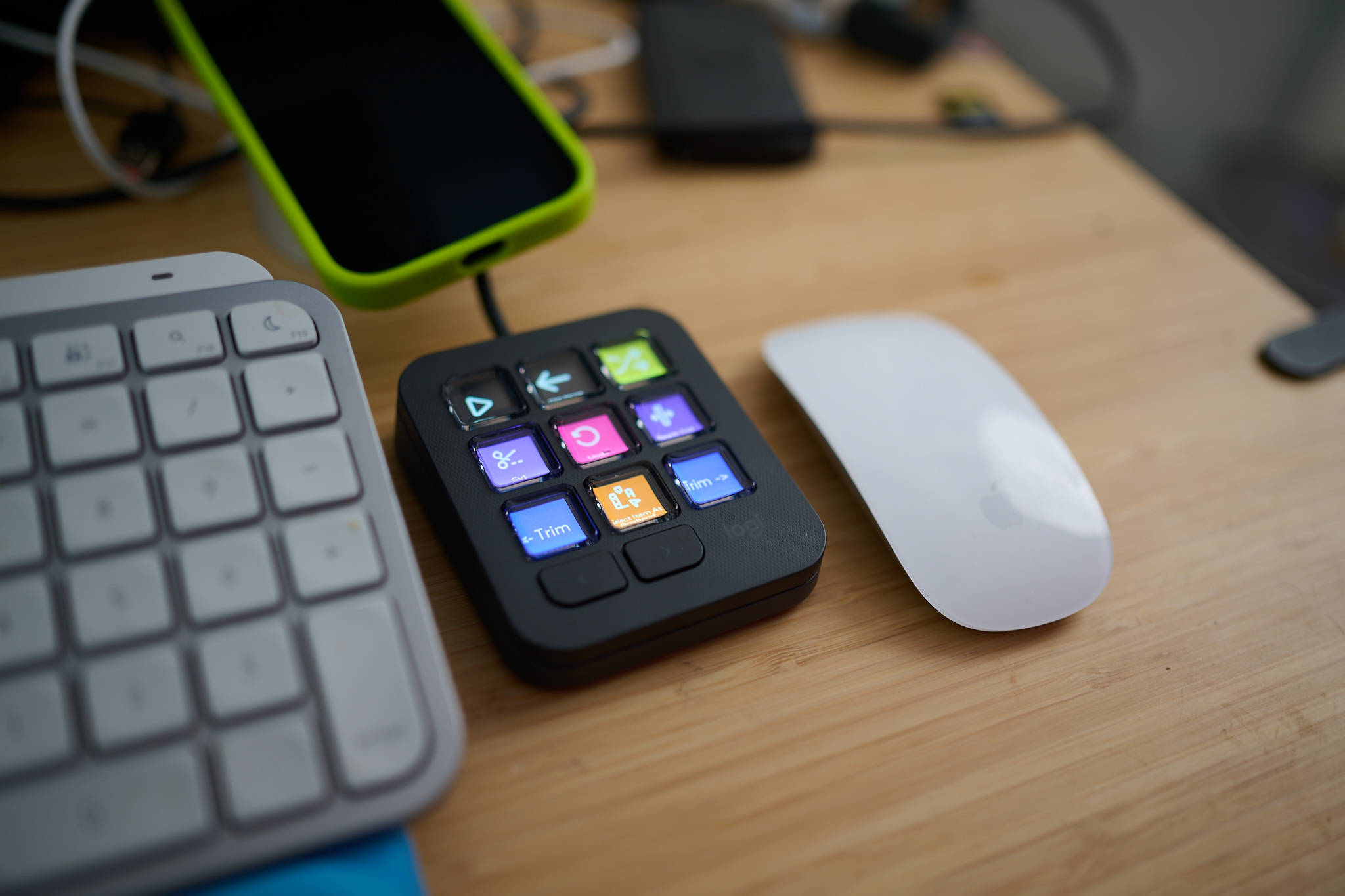
Photo and video editors adopted these decks to trigger shortcuts in applications like Photoshop, Lightroom, Final Cut, Resolve, and more. The programmable buttons make triggering actions that would otherwise require multiple keystrokes or navigating through menus simple.
Elgato makes the most widely adopted control decks, thanks to the company’s early commitment to livestreamers and video producers. For several years, I used the Elgato Stream Deck+ to control sliders in Lightroom and make adjustments in Resolve.
Next, I moved to the Loupedeck Creative Tool, which has more than thirty programmable buttons and seven dials. This is the gold standard of creative editing decks. The Creative Tool comes with presets for all the popular photo and video applications, and custom presets can be installed.
The Loupedeck is an excellent tool, but the price tag that hovers around $550 puts it out of reach for many users. The MX Creative Console comes in just under $200, making it accessible to more creators.
All these tools offer deep customization and the ability to switch between profiles for different applications instantly. Work in Photoshop, and the specialized Photoshop controls are active. Switch to Final Cut Pro, and the keys convert to that workflow.
Logitech MX Creative Console Design and Layout
Logitech has entered the creator deck market with the MX Creative Console. The Creative Console is a two-piece combination of programmable buttons on one panel and a jog wheel with navigation controls on the other.
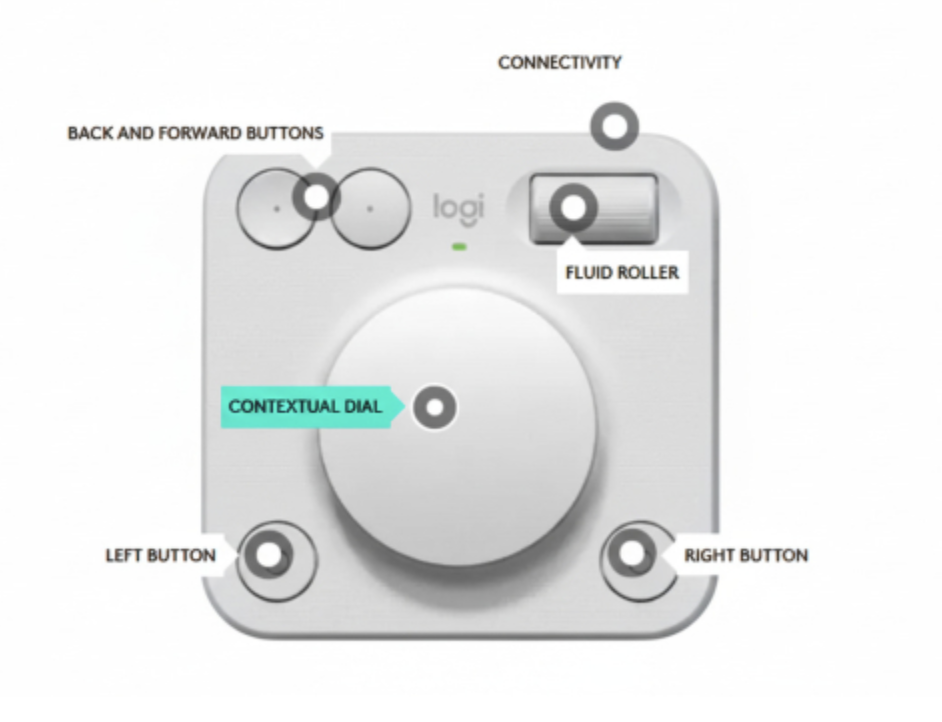
Logitech refers to the portion with the buttons as the Display Keys, and the one with the wheel as the Contextual Dial, but I’ll often refer to the Display Keys component as a deck.
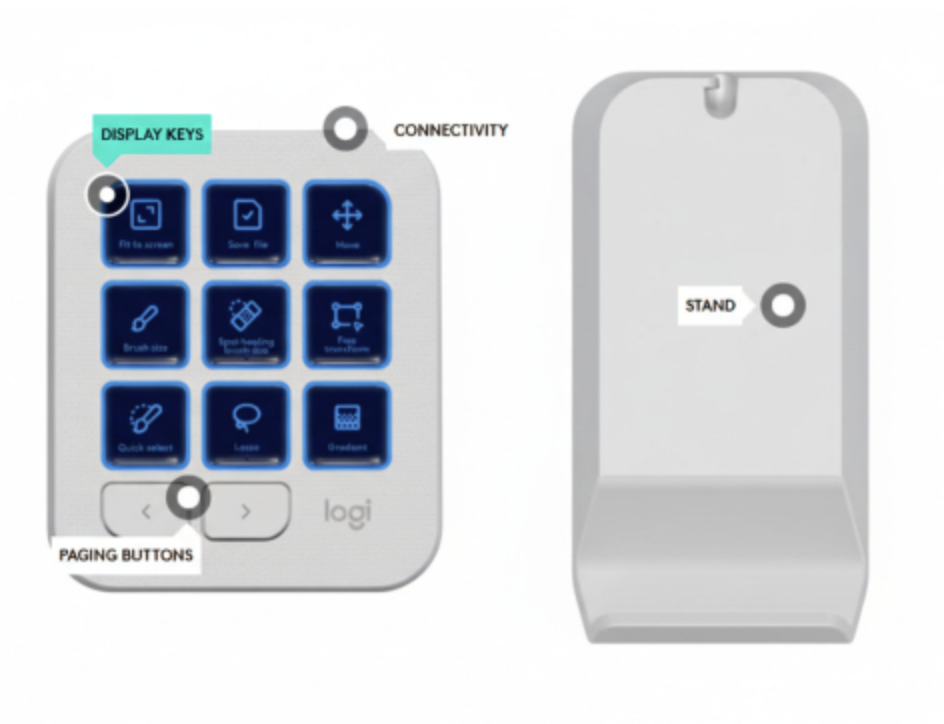
The deck has nine programmable full-color buttons, plus forward and back buttons used to shuffle through different “pages” of buttons. The wheel unit has a main jog wheel, plus a roller that looks and works like the side-mounted scroll wheel on the Logitech MX Master 3S Mouse, which I use in conjunction with the Creative Console for even more customization. The wheel unit also has four programmable buttons.
The Loupedeck Creative Tool is designed to be the primary interface for editing, especially for video editing. Many physical buttons replace or eliminate the need to reach for a keyboard.
The Logitech MX Creative Console serves more as an assistant to a keyboard than a replacement. The two components can be placed on either side of a keyboard or used on the same side.
While I’m right-handed, I’ve used a mouse with my left hand since I developed carpal tunnel in college. Unlike the Elgato or Loupedeck devices, the MX Creative Console allows me to place each component where it works best for my left-handed mousing preference.
The deck connects over USB-C, while the wheel unit is wireless. The energy demands of LCD keys would drain a rechargeable battery quickly or require a much larger case to accommodate a larger battery. Adding another cable to my desk is a hassle, though not a major issue. I’d happily pay more for a battery dock if it would let me use the deck without a cable.
I’d also prefer it if the two units could be docked horizontally and placed side-by-side without slowly moving apart. I’ll likely 3D print something to hold both units together. However, I designed and 3D printed a base for it so that the two units can dock and can be oriented with either on the left or right. The solution cost me about $.10 in 3D filament, so it wouldn’t have cost much to include with the console.
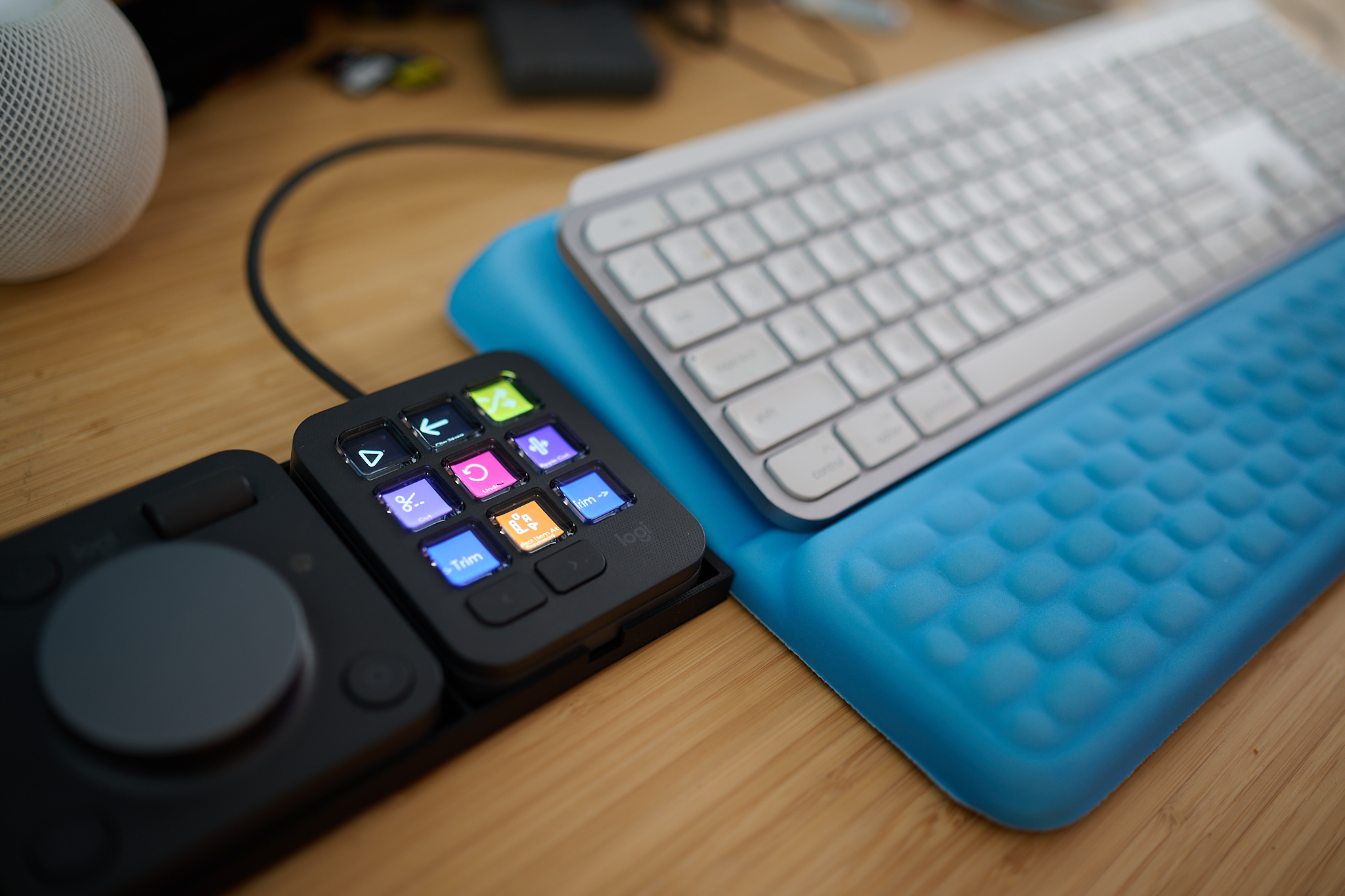
The MX Creative Console strikes a balance between size and functionality. There could be more buttons on the deck, but then it would resemble the more expensive options in terms of features and cost. It’s sized appropriately for its target uses.
Logi Options+ Software and Control — A Learning Curve but Great Customization
Like the rest of Logitech’s programmable accessories, the MX Creative Console is configured through the Logi Options+ software. Options+ is intuitive and easy to use, and the software can configure any number of Logitech devices.
Logitech’s consolidated ecosystem means I can program both my MX Mouse and MX Creative Console simultaneously. Logitech has largely abandoned the custom USB dongles they used for mice and keyboards, and now relies on Bluetooth or wired connections, as is the case with the deck.
Custom profiles are set for the most common applications, with buttons covering the most common functions. You could go from unboxing to a customized Lightroom workflow in less than ten minutes.
Options+ has a list of supported tools, which can be dragged to the virtual display of the Creative Console in Options+. Each of the supported tools has pre-programmed triggers and custom icons.
For example, if you want to add a button that flags a photo, you simply drag that from a list of Lightroom choices to the button you’d like to use to flag an image. Fill out all nine buttons and add multiple pages with more options.
Options+ will be comfortable for anyone who’s created macros. Keys can be programmed to perform keyboard operations, select menu items, or trigger other scripts.
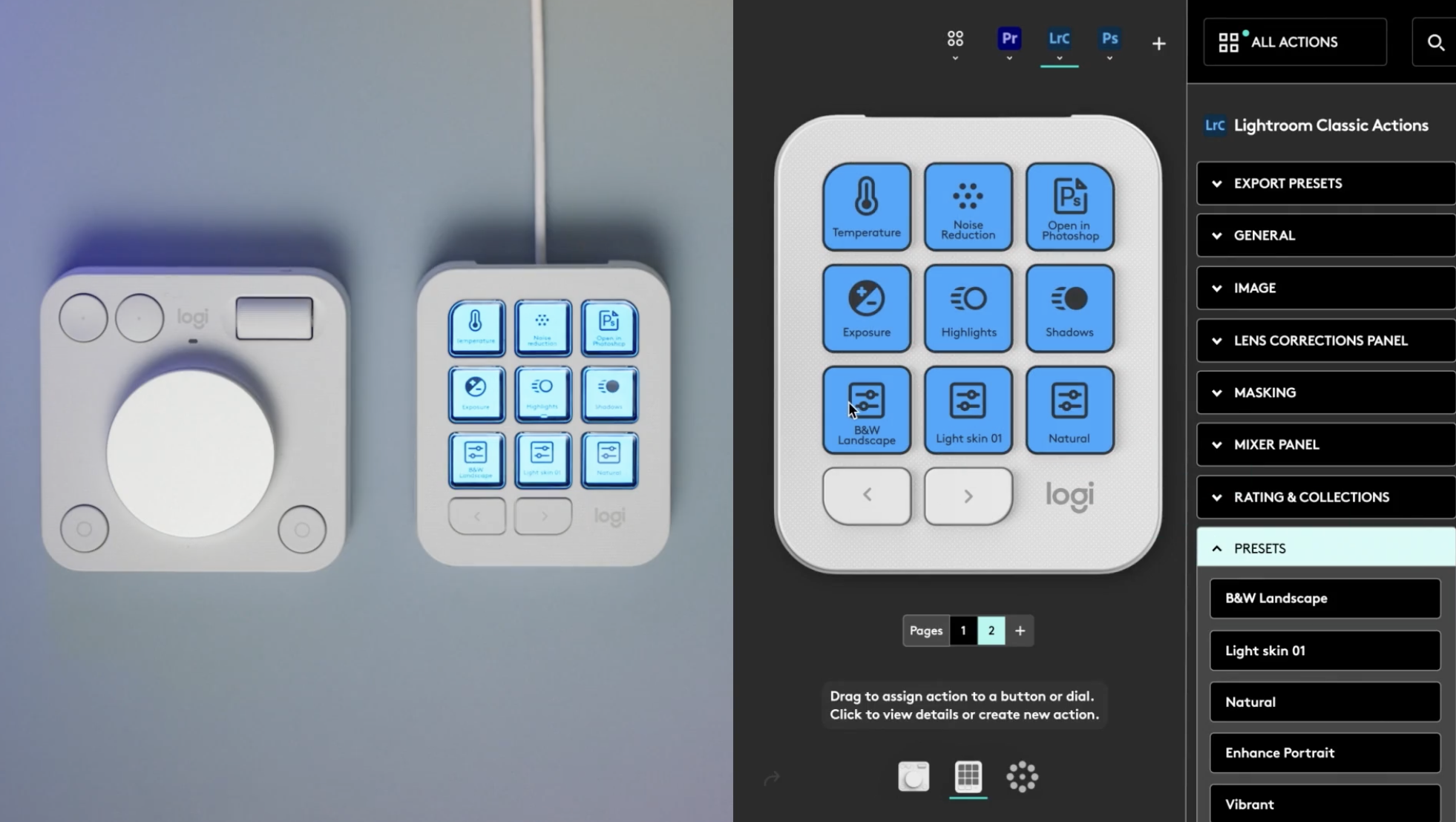
Options+ has presets for almost all of the creative tools on the market. Logitech recently added support for Resolve, which added presets for that program. Even without these presets, I could still program keys based on their shortcuts in Resolve, but it wouldn’t have been as seamless as picking from a list of functions.
As the name implies, the Contextual Control dial changes functionality based on operations on the Display Keys. Press the Layers button in Photoshop, and the dial moves through the layers. Switch to the healing brush tool, and the dial controls the brush size.
Logitech MX Creative Console in Use
I enjoy working with the Creative Console, though the scarcity of keys means I either need to set up multiple pages of keys to toggle through, or jump back to the keyboard and mouse for quick tasks. Having multiple pages of keys and a button to toggle between them is faster, but if I need a key on the fourth page, it’s often easier to just use my mouse.
The Contextual Control helps in programs like Photoshop, and Lightroom’s separate Library and Develop panels make the overall combination work well. Press a button, turn the wheel. Press another button, turn the wheel again.
Most video editing uses just five or six keys, so the Creative Console fits into most of my workflow. I’ve programmed it to trim forward and back, cut with the blade tool, select the clip under the playhead, and a few more tasks.
I have issues when I need to jump to a less common tool or function, usually after I’ve finished my first cut, when I’m adding B-roll, transitions, or titles.
Without thinking about it, I typically forget about the MX Creative Console once I’ve jumped back to the keyboard. Only when I start to do basic edits do I notice I’m using the keyboard again.
That’s not a problem specific to the MX Creative Console, but of these devices in general. To use them efficiently, it’s necessary to overwrite some muscle memory.
When I jump between programs, the MX Creative Console becomes most useful. I often forget the shortcuts for common activities in Photoshop, Lightroom, and Illustrator, yet these tools are part of my regular workflow.
Setting up my most commonly used tools in each application keeps me focused on my task and less focused on trying to remember which menu has which control I need.
Logitech MX Creative Console Purchase Recommendations
Even though the Logitech MX Creative Console costs less than half the price of the Loupedeck Creative Tool, it’s still an expensive upgrade.
If you’re a casual user of creative tools, the benefits may not be worth the expense. If you’re a power user, you might find the MX Creative Console slightly limited and be more inclined to use the Loupedeck console.
There is a sweet spot with the MX Creative Console, and that’s with the user who has a heavy workload and wants to get around the roadblocks that using a keyboard and mouse creates.
The split-unit nature of the Display Keys and Contextual Control is appealing, though I keep going back and forth on which side of my keyboard each component should live.
I don’t get as much done with the MX Creative Console as I do with the Loupedeck Creative Tool, but I also don’t get overwhelmed as easily with the Logitech device as I do with the Creative Tool.
If you’re a keyboard shortcut expert, you’ll do better sticking to the shortcuts you’re familiar with, especially if you’ve customized your keyboard.
But if you often search for commands under the menus, or do things with a mouse because you can’t remember the shortcuts, the Logitech MX Creative Console may be the tool that takes your editing to another level.
Other Tools to Consider
If the Logitech MX Creative Console doesn’t fully meet your needs, several other tools offer different features and price points to enhance your creative workflow:
Elgato Stream Deck XL: A popular control deck with 32 customizable LCD keys, ideal for livestreamers and video editors needing extensive programmable options. [Available on Amazon]
ELECOM HUGE Trackball: An ergonomic wireless trackball mouse with 8 customizable buttons and a large 52mm ball for precise control, ideal for reducing wrist strain during long editing sessions.
Loupedeck Creative Tool: A premium control deck with over 30 programmable buttons and seven dials, designed for professional photo and video editors seeking a comprehensive interface.